Google has officially launched the Gemini app for Windows, making its AI assistant accessible directly from desktop systems. As announced by Google, the application is designed to give users immediate assistance without requiring them to switch windows or navigate through browser tabs. The release targets users on Windows 10 and Windows 11 who rely on fast access to AI tools during their daily routines.
What the Gemini App for Windows Delivers
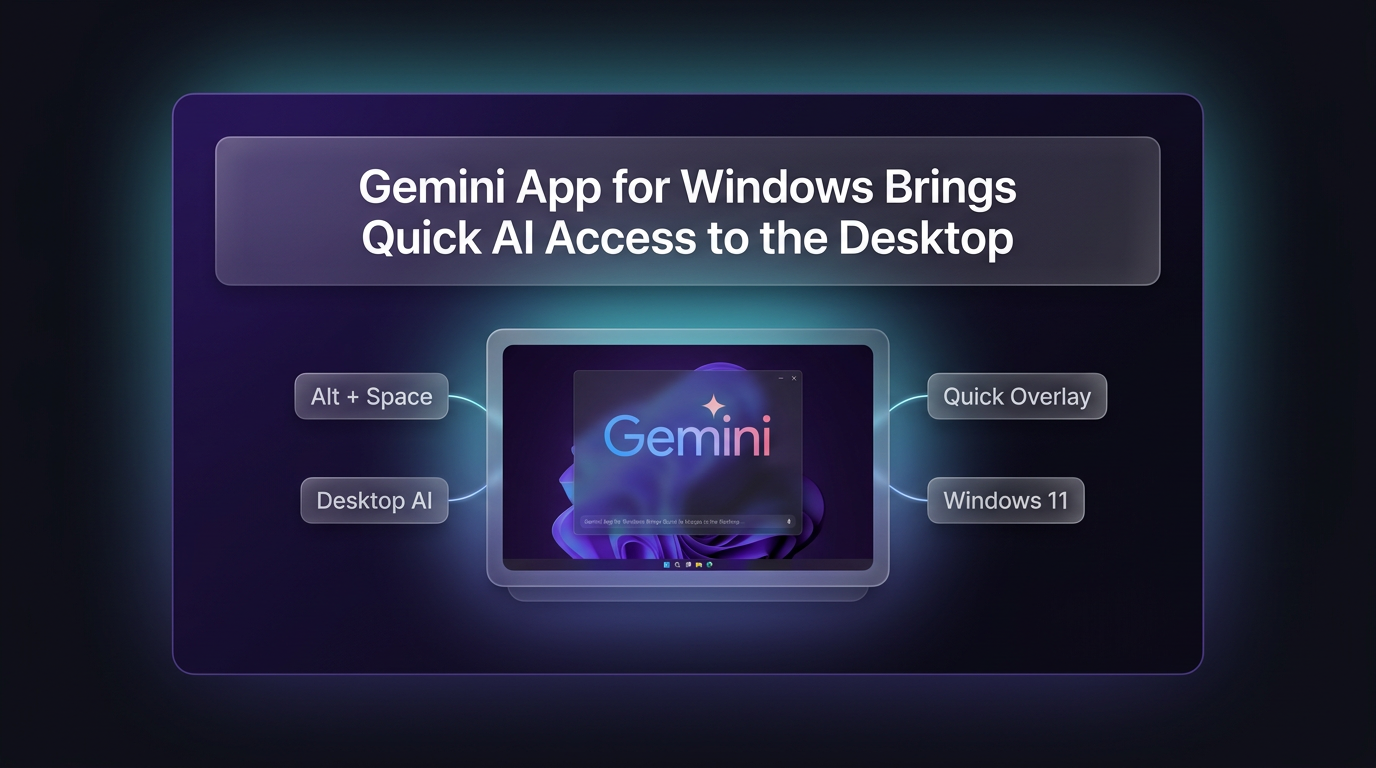
The primary addition in the Gemini app for Windows is quick accessibility through an operating system shortcut. By pressing Alt + Space, users can bring up a Gemini overlay directly over whatever application they are currently working in. This allows users to generate text, check facts, or brainstorm ideas without leaving their active task.
The app functions as a dedicated workspace while remaining lightweight in the background. Google states that the software is engineered to run quietly without slowing down PC performance, making it practical for users running multiple demanding business applications simultaneously.
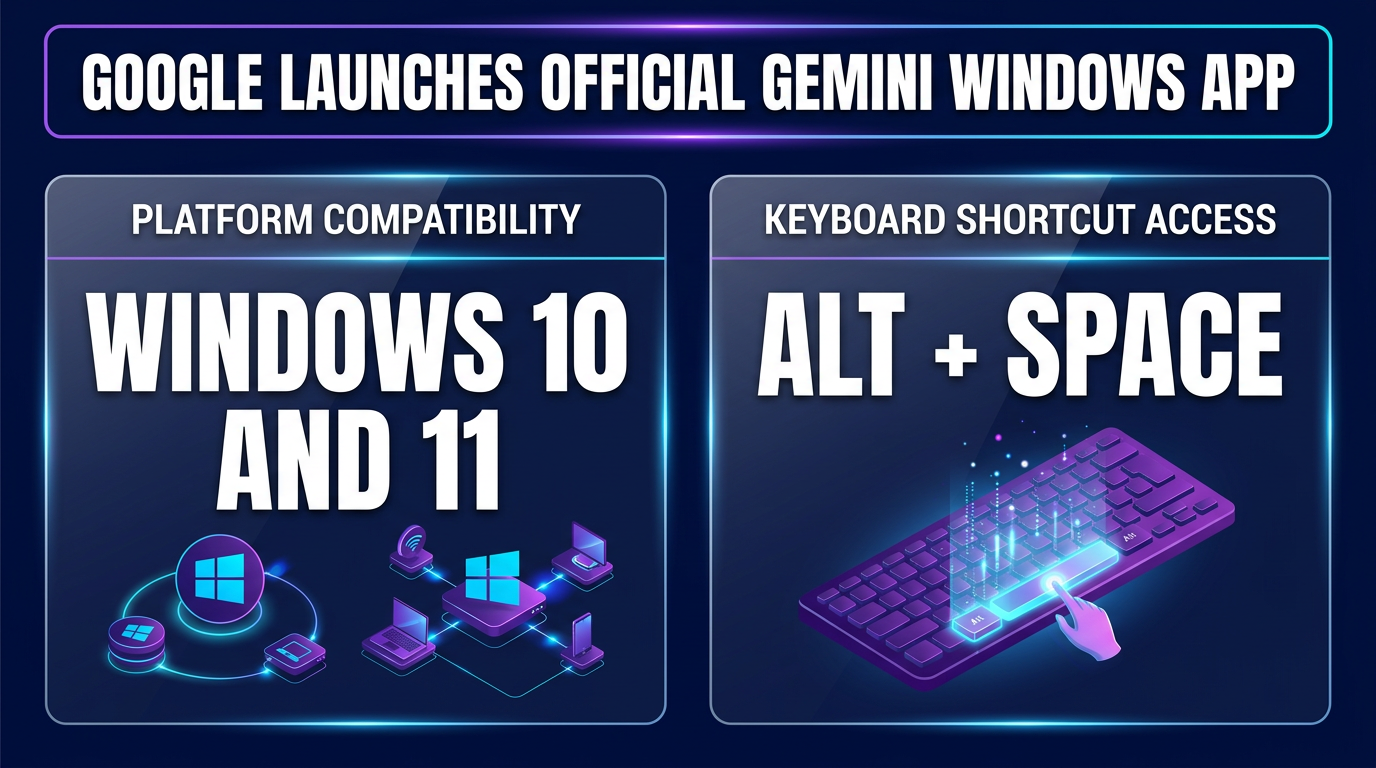
The Gemini app for Windows syncs account settings and conversation history across devices, so a query started on a desktop can continue seamlessly on a laptop later in the day. This kind of platform compatibility matters for professionals who split their time between a docked home setup and a machine on the road, and it is one of the clearer signs that the Gemini app for Windows was built as a proper native client rather than a repackaged browser tab.
Key Features and Workspace Connectivity
The desktop release brings several core capabilities together in one native environment. Instead of keeping isolated browser tabs open, users can manage tasks and access project data directly on their PC.
- Shortcut activation: The Alt + Space shortcut opens a floating interface over any active screen to draft text, summarize content, or answer questions immediately.
- Google Workspace data access: Gemini can connect with Google Drive and Gmail to pull relevant files, search correspondence, and draft structured summaries.
- Agent-assisted task management: Users with a Google AI subscription can assign multi-step workflows to Gemini Spark to handle structured requests.
- Image and video creation: The app supports image generation with Nano Banana and video directing capabilities using Gemini Omni, subject to subscription requirements.
For builders organizing complex business operations, connecting desktop interfaces to structured agentic AI systems provides a faster way to interact with data across daily administrative tasks.
Availability and System Requirements
The Gemini app for Windows is available globally for download on computers running Windows 10 and Windows 11. Installation is accessible directly through gemini.google/desktop. Certain advanced capabilities, including Gemini Spark task execution and Gemini Omni video creation, require an active Google AI subscription and are restricted to users aged 18 and older.
Google noted that this initial desktop release will expand with additional native capabilities rolling out over time.
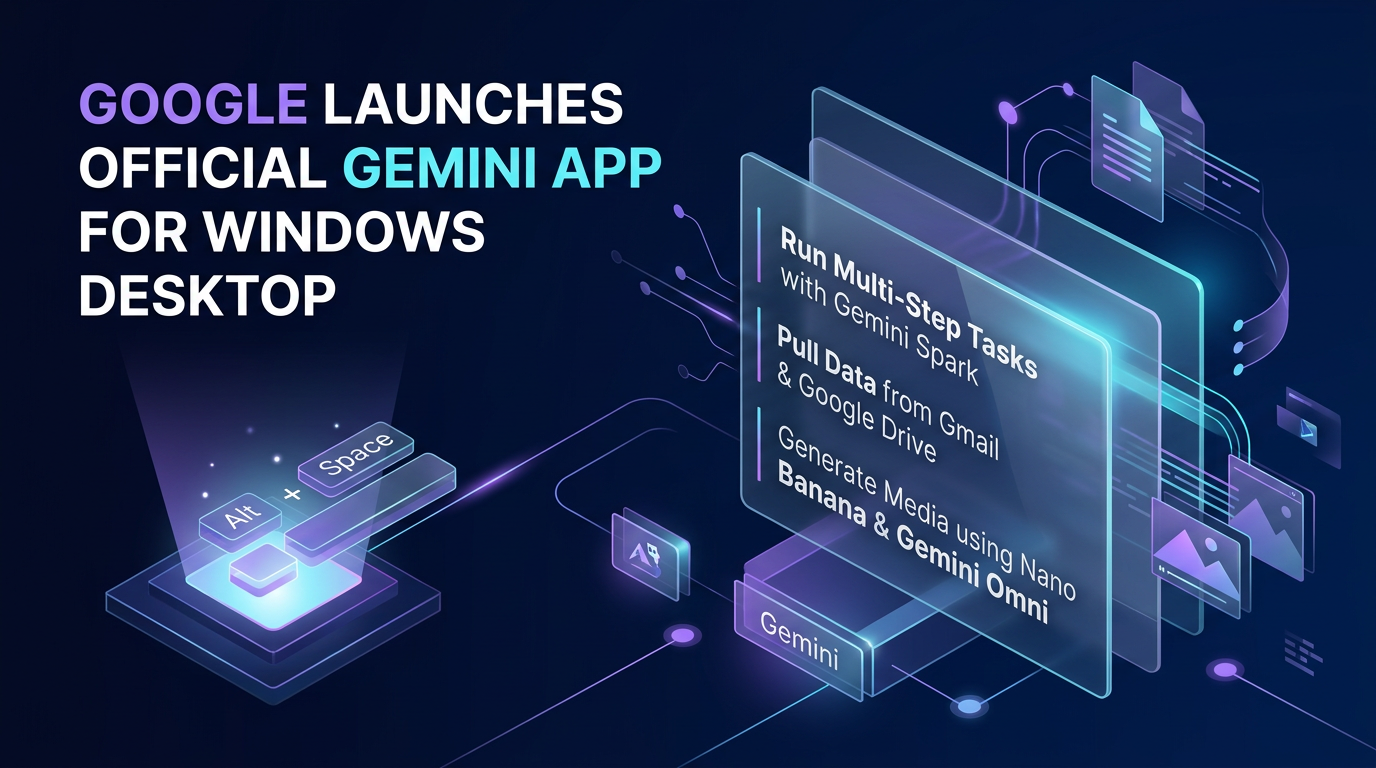
Beyond quick text generation, the Gemini app for Windows can run multi-step tasks, pull data directly from Gmail and Google Drive, and generate media using Gemini image tools, all without opening a browser tab. For teams already living inside Google Workspace, that tight integration removes a layer of friction that used to slow down everyday requests, from drafting a reply based on an open document to summarizing a spreadsheet without switching windows.
Where This Fits in Business Workflows
For operations teams and business owners, native desktop interfaces reduce the friction of using AI during focused work. When Wasif designs custom AI automation setups for clients, having fast access to models on the desktop complements background automations. While backend workflows handle data synchronization automatically, desktop tools give individual team members quick manual control over summaries, drafts, and file lookups.
If you want to integrate practical AI tools and automated systems into your business operations, reach out to Wasif Ahmed to discuss your project.
Frequently Asked Questions About the Gemini App for Windows
Is the Gemini app for Windows free to use?
Yes, the Gemini app for Windows is free to download and use with a standard Google account, though some advanced features may require a Google AI subscription for higher usage limits.
Does the Gemini app for Windows work without an internet connection?
No, the Gemini app for Windows relies on a live connection to Google servers to process requests, so an active internet connection is required for it to function.
How is the Gemini app for Windows different from using Gemini in a browser?
The Gemini app for Windows runs as a native overlay that can be summoned instantly with Alt + Space from any application, whereas the browser version requires switching tabs and losing context from the task at hand.
Which Windows versions support the Gemini app for Windows?
Google has confirmed that the Gemini app for Windows supports both Windows 10 and Windows 11, covering the vast majority of desktop and laptop users still on active support.
Getting the Most Out of the Gemini App for Windows
For anyone installing the Gemini app for Windows for the first time, a few habits make the difference between a novelty and a genuine productivity tool. Pinning the shortcut to a frequently used key combination, keeping the overlay docked to a secondary monitor if one is available, and linking a primary Google Workspace account early all help the assistant surface more relevant answers from the first session.
Teams rolling out the Gemini app for Windows across an office should also review admin controls in Google Workspace, since IT departments can manage which data sources the assistant is allowed to pull from. That level of control is part of why the Gemini app for Windows is being positioned as an enterprise-ready release rather than a consumer experiment, and it should ease adoption for organizations that were previously cautious about desktop AI tools touching sensitive files.